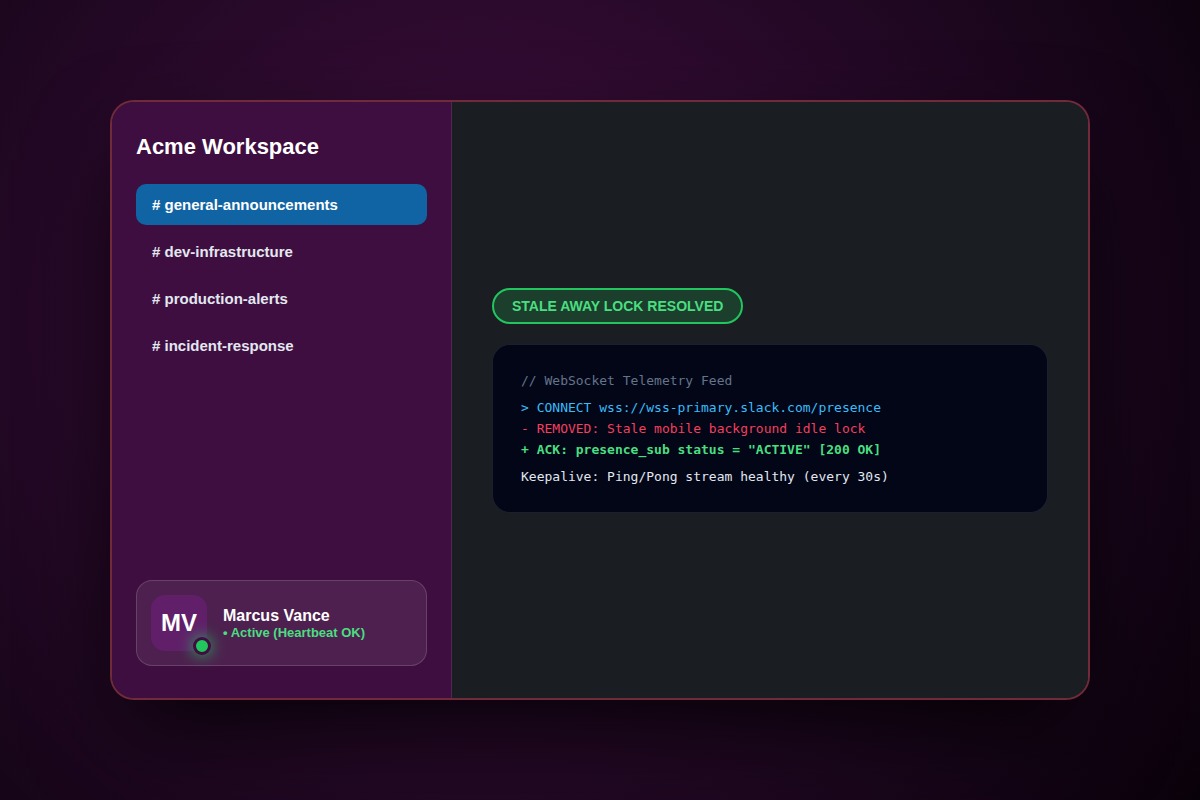
How to Fix Slack Status Stuck on Away (Not Showing Active)

In Slack, press Ctrl+Shift+R (Windows) or Cmd+Shift+R (Mac) to clear internal cache. Then click your profile picture > Set yourself as active. If persistent, toggle hardware acceleration off under Preferences > Advanced.
Slack > Preferences > Advanced > Uncheck 'Disable hardware acceleration'Why Does This Error Happen?
Slack calculates presence via OS-level HID mouse/keyboard hooks. Virtual desktops, sleeping mobile companion apps, or GPU driver crashes can desynchronize the presence heartbeat.
Step-by-Step Diagnostic & Resolution Walkthrough
1Step 1: Force Hard Reload and Cache Purge
Hold Command + Shift + R on Mac or Control + Shift + R on Windows to purge local session cookies and reconnect the presence WebSocket.
2Step 2: Sign Out of Ghost Mobile Sessions
Open Slack on mobile, tap You > Preferences > Advanced > Clear Cache, or sign out and back in to kill stale mobile background sockets.
3Step 3: Toggle Hardware Acceleration
Open Slack Preferences > Advanced. Check or uncheck 'Enable hardware acceleration', then restart Slack.
Troubleshooting Matrix & Configuration Rules
| Device Scenario | Observed Glitch | Fix Action |
|---|---|---|
| Desktop locked overnight | Remains Away despite typing | Hard reload (Cmd+Shift+R) |
| Dual monitors with RDP | Mouse hooks fail across remote sessions | Run Slack on host OS |
| Mobile app in background | Forces away after 30 minutes | Toggle mobile presence to active |
← Swipe horizontally to view full table →
Still Not Working? Check These Edge Cases
Fix: Ensure your IT department whitelists wss://*.slack-msgs.com over port 443.
Frequently Asked Questions
How long before Slack automatically sets your status to away?
By default, Slack switches to Away after 10 minutes of desktop inactivity, or immediately when the computer enters sleep.