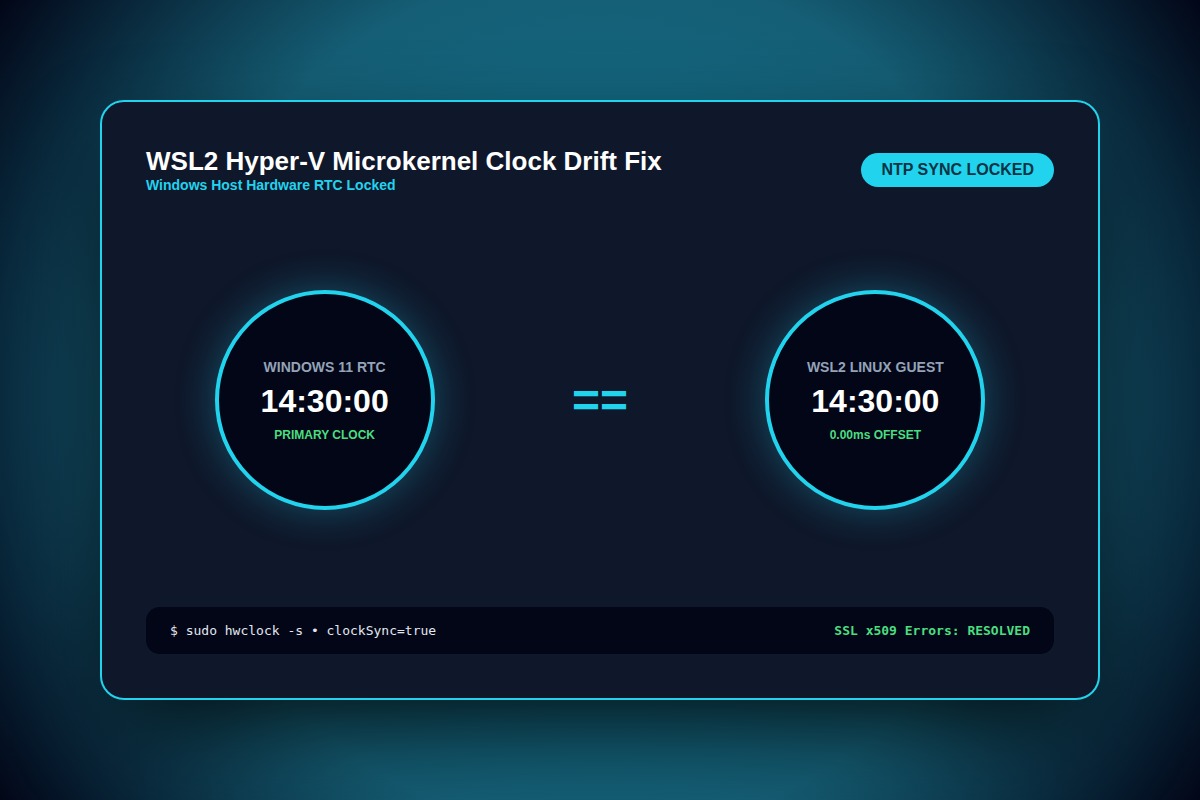
How to Fix WSL2 Clock Drift on Windows 11 (SSL & Git Errors)

In PowerShell (Administrator), run: wsl --shutdown. Then open your WSL terminal and sync hardware time using: sudo hwclock -s. To permanently fix it, enable autoProxy and sync in .wslconfig.
sudo hwclock -sWhy Does This Error Happen?
When Windows 11 enters Modern Standby or sleep, the Hyper-V hypervisor suspends the Linux kernel's internal tick counter. Upon resume, WSL2's clock remains frozen at the sleep timestamp, causing SSL handshake failures.
Step-by-Step Diagnostic & Resolution Walkthrough
1Step 1: Sync Hardware Clock to Host Time
Open your Ubuntu / Debian WSL terminal and force synchronization with the host motherboard clock.
sudo hwclock -s2Step 2: Add Automatic Time Sync to .wslconfig
In Windows, create or edit C:\Users\[Username]\.wslconfig and add the auto-memory and time flags under [wsl2].
[wsl2]
guiApplications=false
autoProxy=true3Step 3: Restart WSL Subsystem
In Windows PowerShell, terminate all running distributions to reload settings.
wsl --shutdownTroubleshooting Matrix & Configuration Rules
| Affected Tool | Observed Error Code | Root Mechanism |
|---|---|---|
| Git clone / push | SSL certificate problem: certificate has expired | System time is hours behind certificate validity window |
| Docker containers | OAuth token rejected / invalid_grant | JWT token timestamp evaluated as expired in past |
| NPM / Yarn install | CERT_HAS_EXPIRED on registry.npmjs.org | TLS handshake validation failure |
← Swipe horizontally to view full table →
Still Not Working? Check These Edge Cases
Fix: Install chrony or ntpdate in WSL: sudo apt install ntpdate && sudo ntpdate time.windows.com.
Frequently Asked Questions
Does WSL 2.0 release in Windows 11 24H2 solve clock drift?
Microsoft introduced improved Hyper-V time synchronization in modern WSL packages, but manual hwclock -s remains necessary after extended multi-day hibernation.