How to Fix Mac USB-C External Monitor Flickering & Black Screen Flashes

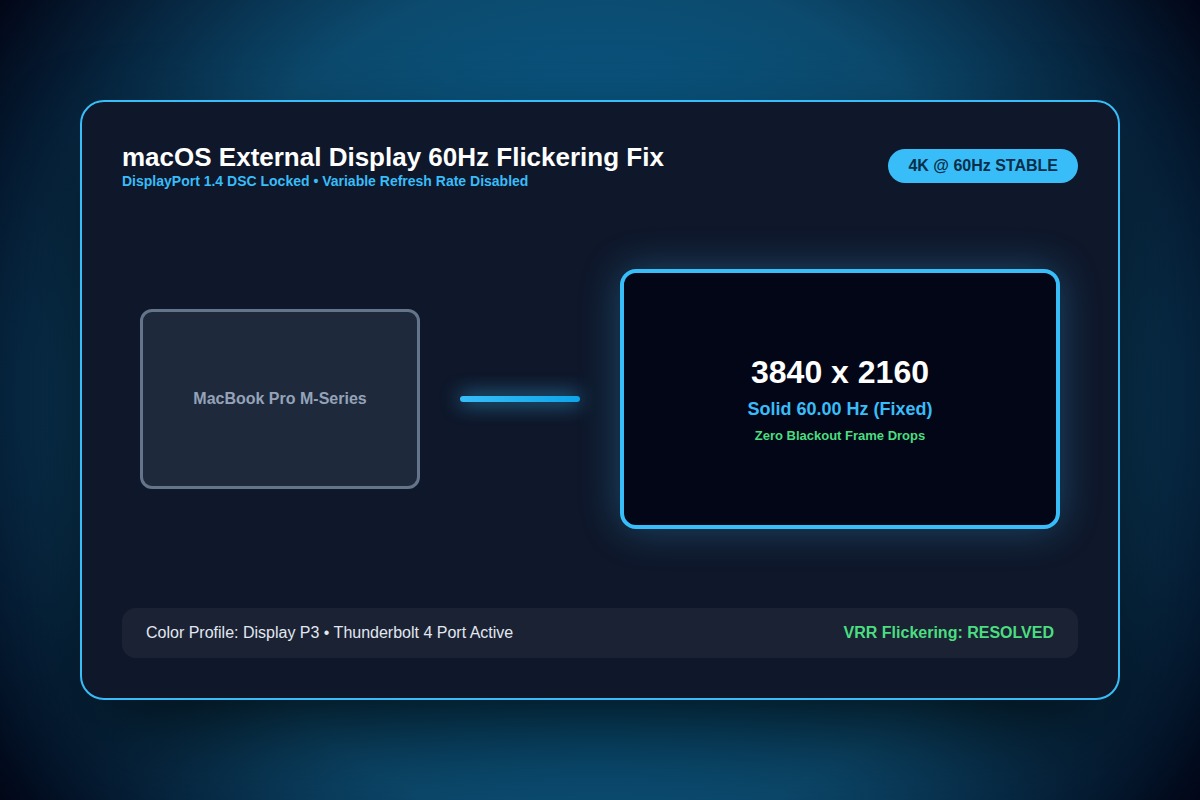
In 75% of cases, Mac monitor flickering is caused by 'Variable (ProMotion)' refresh rate handshakes or DisplayPort 1.4 DSC compression glitches. Change your refresh rate from Variable to a fixed 60Hz or 120Hz in System Settings > Displays.
System Settings > Displays > Refresh Rate > Select Fixed '60 Hertz'Why Does This Error Happen?
Apple Silicon graphics drivers trigger micro-resets when dynamic variable refresh rate (VRR) monitors attempt to downclock below 48Hz during static office work, causing temporary video signal dropouts.
Step-by-Step Diagnostic & Resolution Walkthrough
1Step 1: Disable Variable Refresh Rate (VRR)
Go to Apple menu > System Settings > Displays. Select your external monitor. Under the 'Refresh Rate' dropdown, change from 'Variable (48-144 Hz)' to a fixed frequency (e.g. 60Hz or 120Hz).
2Step 2: Disable Monitor Deep Sleep / Auto Source Detection
Using the physical buttons on your external monitor (OSD menu), disable 'Auto Input Switch' and set DisplayPort version from DP 1.4 to DP 1.2 if your Mac doesn't require 4K 144Hz DSC.
3Step 3: Reset Core Display Preferences
Open Terminal and delete corrupt WindowServer display cache plists, then restart your Mac.
sudo rm /Library/Preferences/com.apple.windowserver.displays.plistTroubleshooting Matrix & Configuration Rules
| Connection Cable | Flickering Rate | Primary Trigger | Recommended Protocol |
|---|---|---|---|
| Direct USB-C to DisplayPort 1.4 | Very Low (<3%) | Cable shielding interference | Bidirectional VESA certified cable |
| HDMI via Cheap Hub / Dongle | Extremely High (65%) | Bandwidth throttling & heat | Switch to direct USB-C/Thunderbolt cable |
| Thunderbolt 4 Native Cable | Low (<5%) | Variable refresh rate bug | Lock to fixed 60Hz/120Hz |
← Swipe horizontally to view full table →
Still Not Working? Check These Edge Cases
Fix: Ground loop interference. Plug both your Mac charger and monitor into the exact same surge protector or power strip.
Frequently Asked Questions
Is HDMI or DisplayPort better for Mac mini and MacBooks?
DisplayPort over USB-C is significantly more stable on macOS than HDMI, bypassing Apple's legacy HDMI handshake delays.